
Sound Profile can activate a profile only for a limited amount of time. When that time ends, Sound Profile can automatically activate another profile (if you want to create a Scheduler or Automatic Planner then read this other article).
Examples of timed profiles:
Activate profile Meeting for 30 minutes
Activate profile Movie for 2 hours
Activate profile Work for 8 hours
Activate profile Silent for 15 minutes
On the main screen, tap the clock icon shown next to the profile you want to activate.

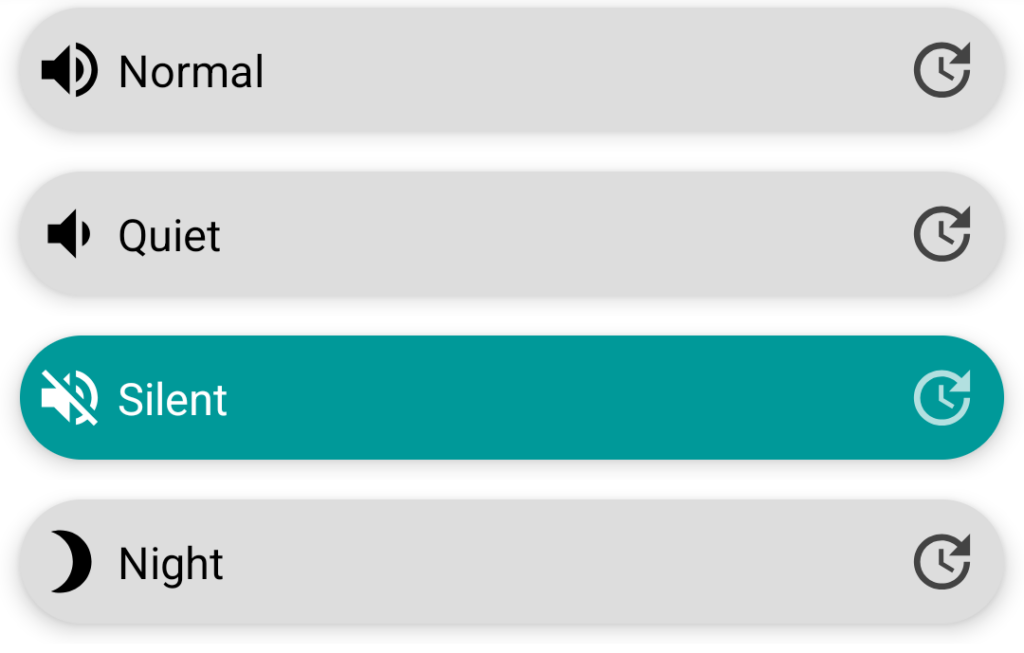
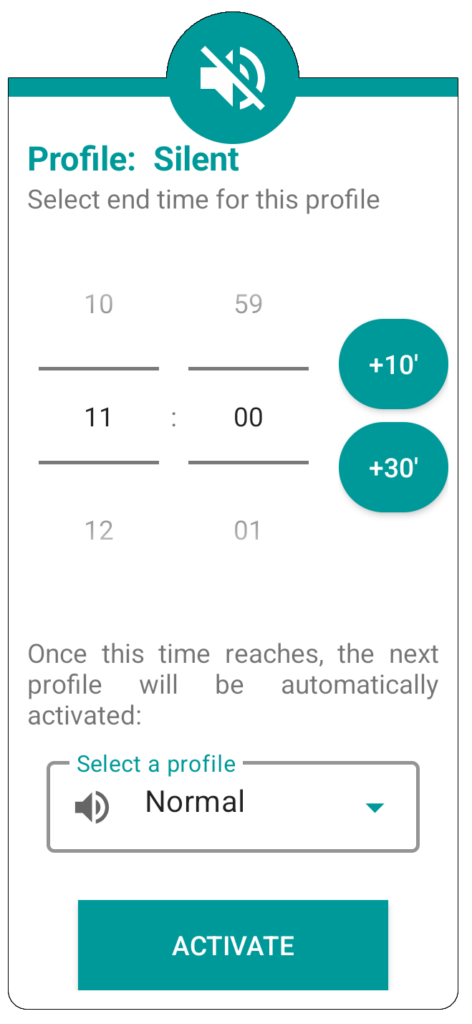
Then choose how long the profile should remain active.
You can also choose what should happen afterwards, for example activate Normal.
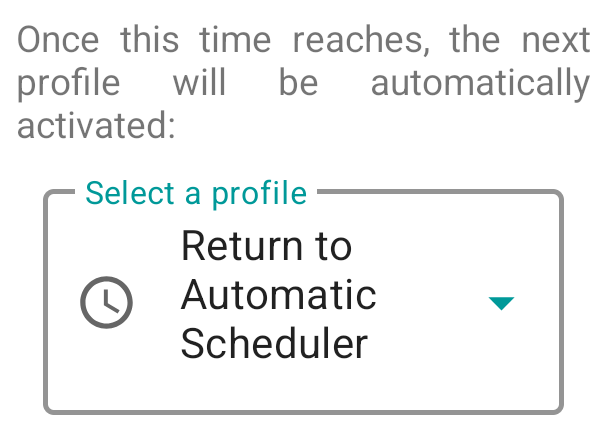
You are also able to set instead of the profile, the option “Return to Automatic Scheduler”. This means that after that time, the app will activate the profile according to the Scheduler (all this in case the Automatic Scheduler is enabled).
If you don’t see the clock icon then check these steps to display it:
- Open Sound Profile and tap on the menu

- Tap on profiles
- Tap on top-right 3 dots menu

- Tap on “Extra activation options“
- Be sure the option “Until a certain time’” is checked
Shortcuts
Another useful feature is to create Shortcus on your home screen with the preset time already configured. For example, you can create a shortcut called “Meeting 30” and it will activate the profile Meeting for 30 minutes, or a shortcut called “Movie 2h” and it will activate profile Silent for 2 hours.
To do that, follow these steps:
- Open Sound Profile and tap on the menu
- Tap on Shortcuts
- You will see there your current Shortcuts. To add a new one tap on
 Add a new shortcut
 - An Asssitant will open to guide you
- Step 1: Select the action Activate a profile
- Step 2: Select the Profile to activate (for example Silent)
- In that same Step 2, choose how the profile will be activated (for example Activate for a specific amount of time)
- Step 3: Set the amount of hours and minutes (for example 00:30 for 30 minutes)
- Set what will happen after that time (for example Activate previous profile)
- Step 4: Set the layout of the shortcut, like icon, color, text (for example “Silent for 30 min”)
- Tap on Finnish and Add to home screen
- Look at your home screen and search your new shortcut.